Keep your routine timer visible on the lock screen
Follow the current action while using other parts of your Android phone.
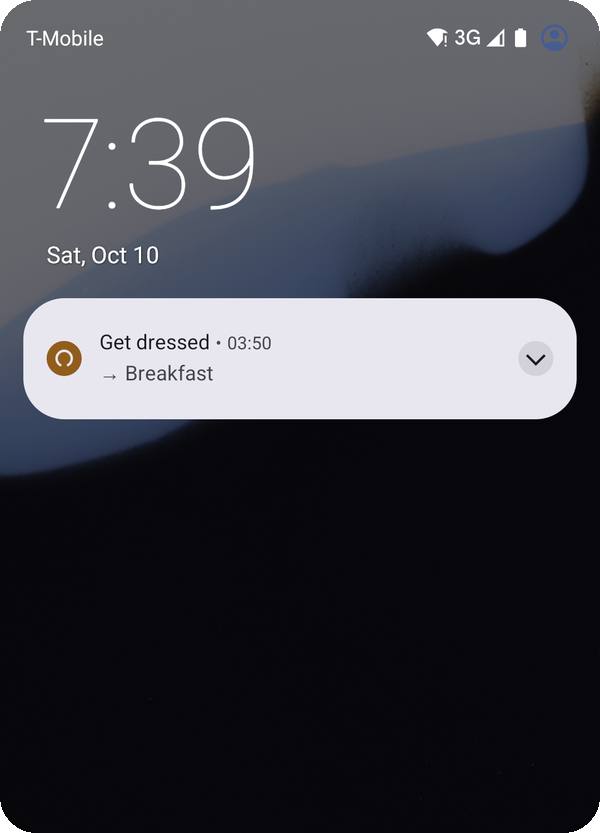
Wend can show the current routine step, what comes next and the time left outside its full-screen runner. That is useful when opening another app would otherwise make you forget the routine.
The live countdown and one home-screen widget are free. Optional Pro adds a widget per routine and scheduled reminders. A reminder to start later is different from the live notification during a running routine.
Start with one routine
- Create a short routine with clear actions and durations.
- Allow notification permission if Android asks. Start the routine in Wend and look for its current-step notification.
- Lock the phone to see how that notification appears on your device.
- Use Done when you finish the action.
Add the home screen widget
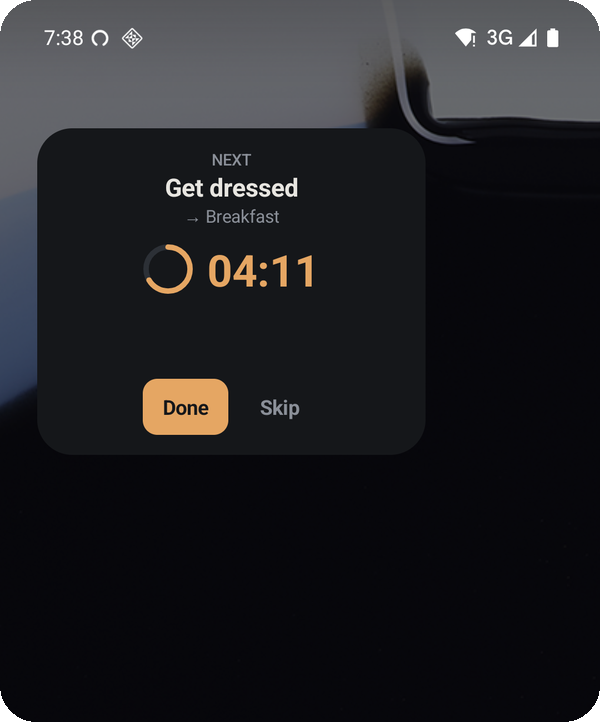
Long-press an empty area of your home screen, choose Widgets, find Wend and add its widget. Follow the launcher prompts. Exact labels vary by device.
The widget is another place to see the current action. It supports starting a routine and marking a step Done or Skip. You can use the app without keeping the full-screen runner open.
If the step is not visible
Check that notifications are allowed for Wend, that your lock screen allows the information you want to show, and that the routine is running. Android versions and device settings differ. Describe the Android version and what you expected to see when sending feedback; do not include private notification contents.
This is a visibility aid. It does not guarantee that every Android device will show the same lock-screen layout.
Did this solve the problem? Tell me what worked or got in your way. Select Wend in the form.